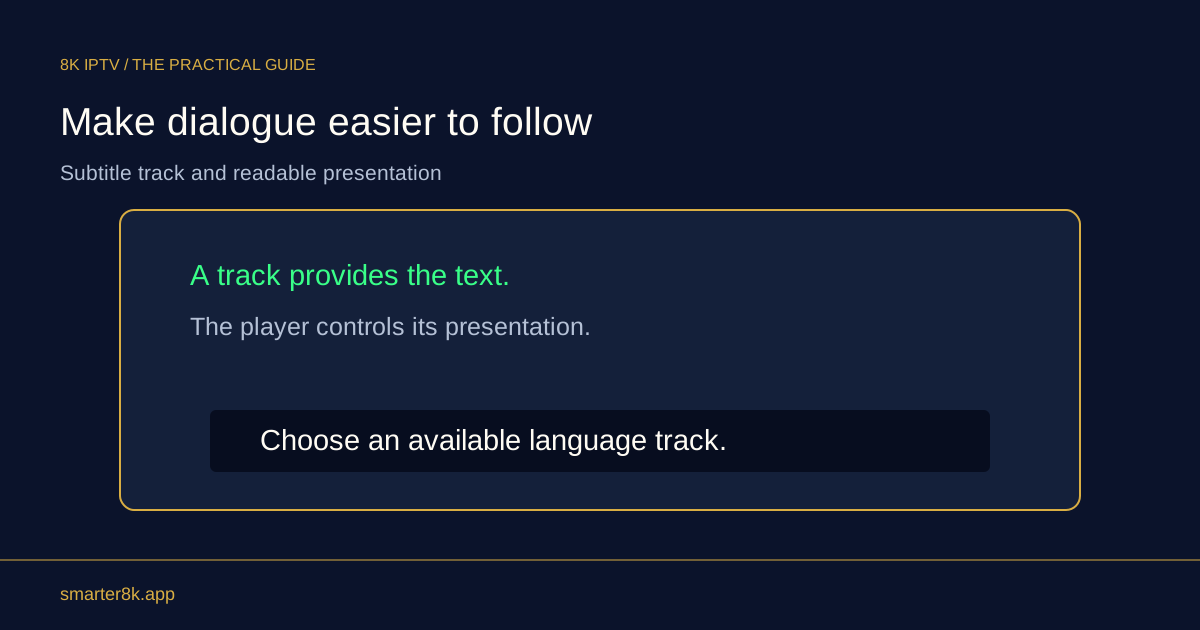
Start with the device’s documented accessibility options and test whether the player responds correctly. Larger text, screen readers, contrast settings and alternative input can help, but support varies. A feature available in the operating system is not proof that every player screen exposes usable controls.
Test essential tasks first
Check whether you can identify the selected control, sign in, find a favourite and stop playback. Those tasks matter more than a long feature list. If the app labels buttons poorly, increasing text size alone may not make navigation accessible.
Change one setting at a time
Large text or display scaling can improve readability but may also reveal a layout that clips controls. Keep a route to reverse the change. Use the app’s supported interface rather than granting powerful accessibility permissions to an unknown helper tool.
Report a specific barrier
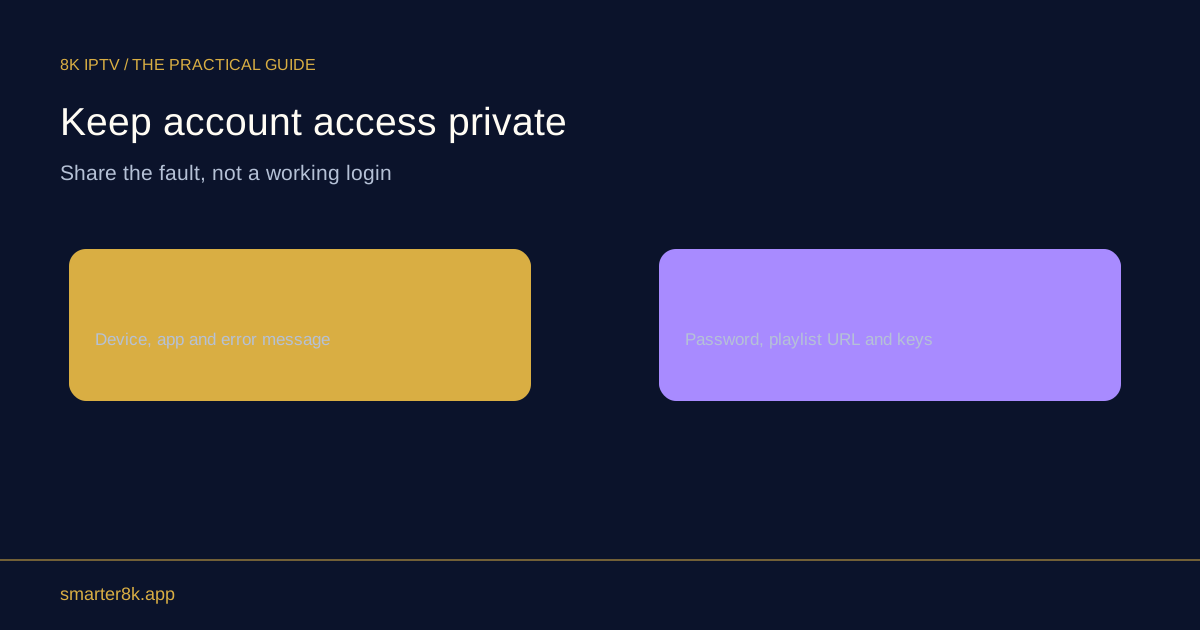
Tell the publisher which control lacks a spoken label or cannot be reached with the chosen input. Include the device, app version and accessibility mode. A clear example helps distinguish a source-video problem from an interface accessibility issue. A useful report identifies the exact blocked task rather than describing accessibility as a single all-or-nothing property.